
Instantly transform lengthy reports and documents into short and professional emails with Copilot in Word. A good email needs to be concise and personalized but summarizing complex ideas from documents takes time in our busy schedules. That’s why chatting with Copilot can simplify writing emails as it pulls key points from multiple documents and tailors the tone for different recipients.
Stay productive at work by generating high-quality email outlines using AI. Learn how to leverage AI to draft, rewrite, and summarize documents into readable emails in Microsoft Word.
How to turn documents into emails
Whether the email is sharing project highlights with managers or summarizing a sales proposal for a client, depend on Copilot to condense information without missing facts and context. Here’s how to make email drafts in Word.
Open the Word document you want to convert into an email message.
Enable Copilot in Word from the ribbon or right-hand icon and start chatting to explain the email drafting requirements.
Add context regarding the recipient, ideal tone, and email length so AI can tailor the message. Further attach reference documents like presentations, OneDrive files, and recent emails using the plus button in Copilot chat.
Review the email draft response and request language or tone changes if needed.
Copy the AI-generated email draft template into Microsoft Outlook or other email providers, and send it when ready. Alternatively, use the share button in Word to generate a link to the document and paste the email draft into the message section as pre-reading.
Copilot prompt example: “summarize this proposal document into key points and draft a short approval email for my manager.”
Tip: add an Outlook email signature to every email to add a touch of credibility. A good email signature enhances the email’s professionalism and makes a good impression about the organization. Quickly customize an email signature template with contact details, brand logo, and other essential links.
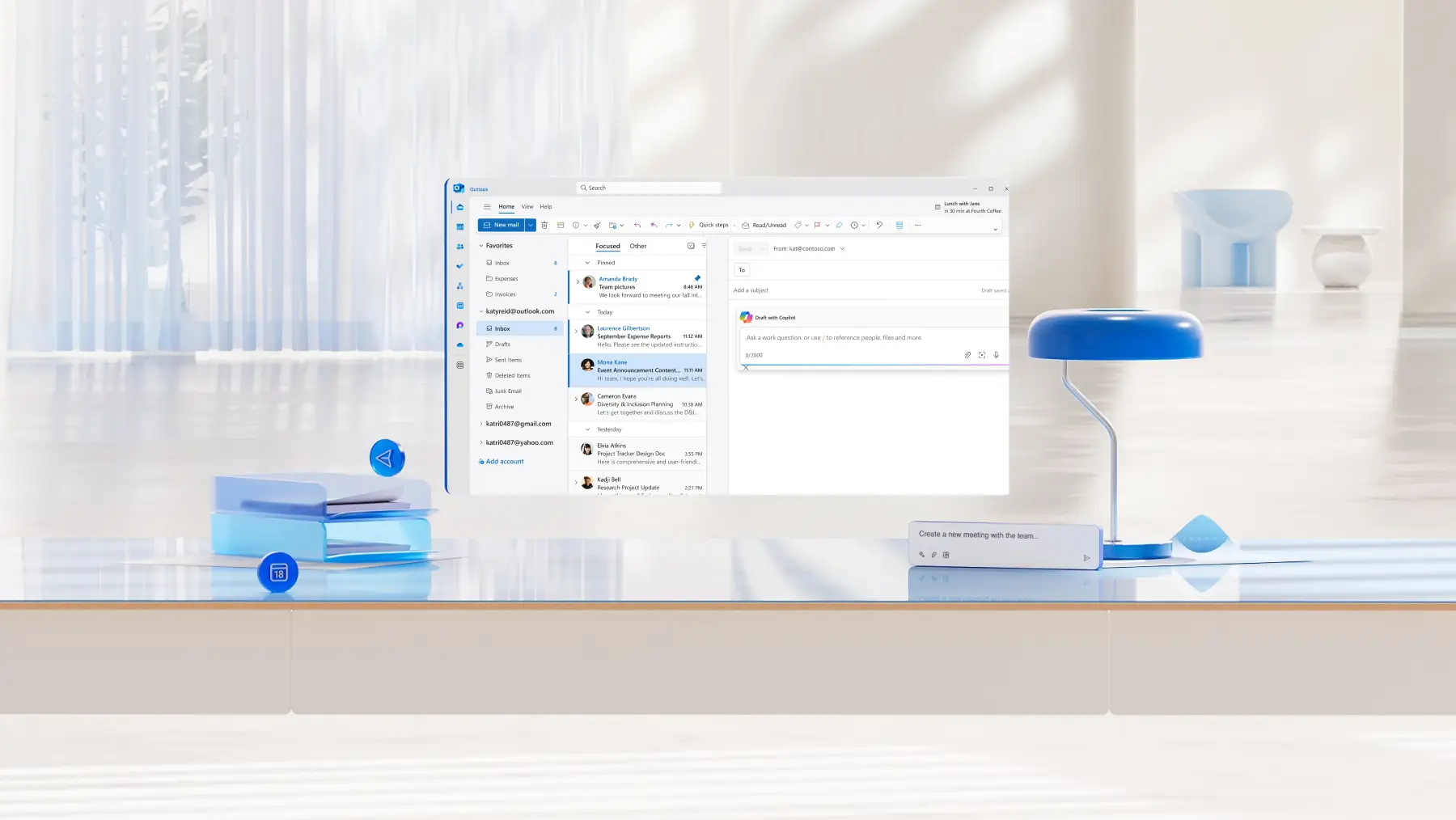
Continue reading to learn which everyday work documents can be turned into polished email templates with AI assistance prompts.
Nine ideas to use AI to draft emails quickly
1. Meeting notes
Meetings can have a range of discussions, talking points, and follow-up actions, making it a lengthy manual task to find the highlights. Convert meeting minutes and note documents into an AI summary to keep meeting attendees and stakeholders informed.
Chat with Copilot to create a useful email draft outline that recaps key points, decisions, and showcases the action items for different recipients, including those who didn’t attend, senior stakeholders, clients, or those who have follow up tasks assigned.
Copilot prompt examples: "turn these meeting minutes into a summary email to align my team on the next steps for this project."
"Help write a short follow-up email to meeting participants based on these meeting notes, highlighting action items by name."
2. Training guides and manuals
Driving learning, HR, or upskilling initiatives at work? Use AI in Word to create digestible emails from lengthy onboarding documents, SOP documents, process trainings, and more.
Use Copilot to generate short-form email content to introduce training guides with key takeaways or write context that links out to the documents. Alternatively, enable busy teams to grasp knowledge faster by creating an Outlook email series from key points.
Copilot prompt examples: "create an engaging email introducing the main points from this training document for new employees completing their onboarding."
"Summarize the training manual into an email with three key takeaways and use a friendly expert tone while encouraging follow-up questions."
3. Status reports
This document to email idea is a time-saver for team leads, project managers, and other roles that need to provide updates to C-suites and executives. Use AI to extract the top insights from weekly status reports, to enable their understanding while saving them precious hours.
Utilize Copilot to rewrite content with action verbs, highlighting progress and achievements, in a digestible format that cuts through their inbox clutter.
Copilot prompt examples: "write an executive summary email of this report with a focus on outcomes and priorities."
"Read this project report and find the top monthly highlights and issues and draft an email to the Chief Operations Manager."
4. Newsletter and blog drafts
Writers, communication professionals, and marketers already draft long-form website blogs and make newsletters in Word. Now Copilot can repurpose that content into engaging email teasers and snippets, saving manual effort of re-writing the content in the right tone for email engagement.
Adapt the tone, length, and format of the drafts by providing Copilot context about if the readers are internal employees, sales partners, email subscribers, or others.
Copilot prompt examples: "rewrite this internal newsletter article as a short and exciting email update for interns."
"Make an email teaser from this blog draft that encourages the subscribers to click through to the full article."
Tip: use Copilot as an email subject line generator to create impactful headings that increase email open rates.

5. Project briefs
New launches require thorough documentation, but not all project members have time to get deeply involved in the full-length document. Project briefs and business proposals can run several pages long as it outlines goals, roadmaps, timelines, stakeholders, required resources, and much more. That’s where Copilot can help with keeping the senders and readers productive.
Generate simple project requirement summaries and tasks with AI, saving time and effort for yourself and team members.
Copilot prompt examples: "write a concise email update to introduce this new project to the whole company, with a special focus on the roadmap."
"Draft an enthusiastic project kick-off email based on this document, and highlight the key people for success."
6. Campaign plans
Communications and content planning documents are lengthy by design. Summarize campaign strategies with AI in emails to quickly get approvals from stakeholders, designers, or agency partners.
Use Copilot to turn creative strategy outlines into launch announcement emails or internal alignment emails.
Copilot prompt examples: "turn this marketing campaign plan into an approval email for the Head of Creative to review."
"Generate a summary of the plan’s objectives, marketing channels, and outcomes to make a launch email draft."
7. Customer research and feedback
Product and support teams can benefit largely from learning about feedback, but manually scanning quotes and complaints is too time-consuming. With Copilot, transform survey results, customer call transcripts, letters, and more feedback documents into action-oriented emails.
Demonstrate responsiveness as a business by drafting emails to share with the customers or share insights and trends internally.
Copilot prompt examples: "summarize this customer feedback call transcript into an internal email which highlights the key complaints."
"Write a thank you email draft template based on the customer’s positive quote and feedback."
8. Event invitations and recaps
HR and communications teams can quickly turn event-related documents into invitations using Copilot which can refer to the event plan document, and pull details from related emails and Teams meeting recordings. Use AI to extract event details like dates, location, timing, RSVP links, and more.
Copilot can also craft event recaps to highlight parts of the event from the schedule and write thank you notes for those involved. Keep the event emails engaging by requesting a lively but professional tone of voice.
Copilot prompt examples: "create a professional invitation email to all employees using details from this event plan and recent emails and meetings about this topic."
"Make a post-event recap email from this document by summarizing key events from the schedule."

9. Resumes
College students and job seekers can create a quick tailored outreach email from resumes and job advertisements, while applying for an internship, volunteering role, internal opportunities, or simply networking. Prompt Copilot to create a polished message that summarizes experiences suited to the job listing.
This AI-powered email drafting tip is perfect when there’s no time to craft and format a formal cover letter.
Copilot prompt examples: "create a concise application email using details from this resume document."
"Draft a networking introduction email to a startup founder by summarizing my key achievements from this document."
Try these ideas to create impactful emails that get responses from the people that matter. Start drafting emails faster with Microsoft Word.
Explore more time-saving ideas by learning how to take meeting minutes with AI, and how to write a meeting agenda.
Frequently asked questions
Is Copilot in Word secure to use?
Microsoft 365 Copilot, including Copilot in Word, follows enterprise-grade security and privacy standards. It operates within the Microsoft 365 compliance frameworks. The data access is limited to what you already have permission for in Microsoft 365 and any data stays within the organization’s Microsoft environment. Learn about data security in Copilot.
How to refine Copilot prompts to write better emails?
Copilot can understand the context of documents but in case the output is not as expected, clarify information about the goal and recipients of the email again. Users can also highlight a specific paragraph from a document for Copilot to focus on and improve the AI email draft template. Being descriptive about the ideal tone and format can also help with good AI content generation.
How to make an email accessible?
It’s important to make sure everyone can read and understand emails. Structure content clearly using short paragraphs or lists and use readable fonts like Arial or Calibri. Avoid using tables and use headings to help screen readers to work properly. If using Outlook, use the accessibility checker which flags issues and suggests fixes like poor color contrast.